 CompassDocs
Email in, tickets out, nothing lost in between
Mail to your help addresses becomes tickets, replies thread back, and every ticket answers from the address it came in on. Read Microsoft 365 mailboxes directly, pick the address replies are sent from, and see each email the way its sender formatted it.
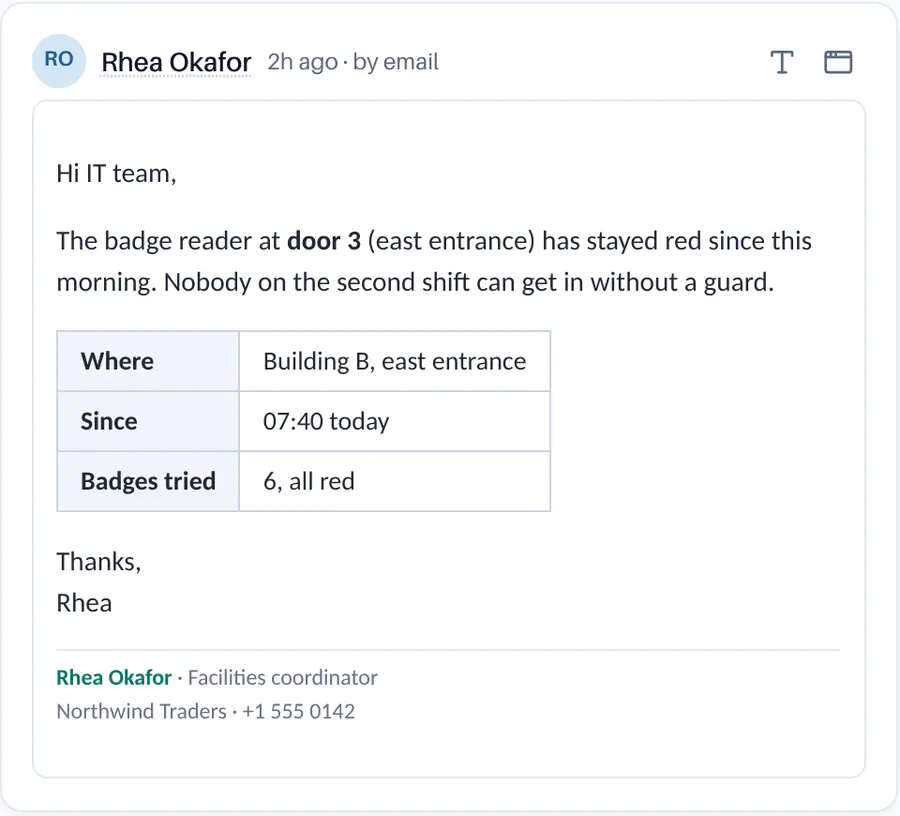
An incoming email shown as it was sent, tables and signature included, with a switch to plain text.
One shared inbox can’t serve every team.
× Every team shares one support address, and replies leave from a no-reply.
× Reading a Microsoft 365 mailbox means forwarding rules and another mail service in the middle.
× Formatted emails arrive flattened into text, their tables and signatures gone.
→ The desk treats email as a first-class channel, with the safety checks to match.
Every address, every mailbox, every email readable.
Read your help mailboxes through Microsoft Graph.
Connect shared or user mailboxes in Microsoft 365 and the desk reads them directly, with no forwarding and no inbound mail provider in between. Microsoft tells the desk when mail arrives, and a timer checks as well.
- Set up automatically with Microsoft: sign in once as a tenant admin and the desk creates its app registration
- Limit the app to your help mailboxes with one generated block of Exchange Online PowerShell; Check access reports what it can reach
- Sender checks use Exchange’s own SPF, DKIM and DMARC results
- Replies can go through Microsoft 365, as the mailbox, so they appear in its Sent Items
- Meeting invites that arrive this way fill in the ticket’s event
See the email the way it was written.
An incoming email with an HTML part shows in the conversation as the sender formatted it: tables, bold, colours and signatures, with nothing to click. Each agent can switch any email to Plain text, and their last choice becomes their default.
- Quoted history from Gmail, Outlook, Apple Mail, Thunderbird, Yahoo and others folds under Show quoted text
- Pictures sent inside the email show; pictures from other sites wait for Show images
- The email runs nothing: it is cleaned on every view and shown in a sealed frame that can’t run script, submit forms or reach the desk
- Open in a window and Print it with a header: the ticket’s number and subject, the sender, CCs, when it arrived, and who printed it and when
Remote images are hidden · Show images
Thanks, it beeps twice now. I’ve attached a photo of the controller in case it helps.
Several help addresses
Each address has its own From name and the team its new tickets start in. A ticket remembers the address it came in on, replies go out under it, and agents can change Answer from on the ticket.
Send-from addresses
Add as many addresses as your mail provider lets you send from, each with a From name and its own Send test. The Reply-To stays the help address, so answers still thread onto the ticket.
A refused address never holds mail back
If your provider refuses a send-from address, the reply goes out from the workspace address instead, and the refusal shows on the page and in the audit log until a test passes.
Senders are verified
A sender’s address counts only when the mail provider confirms the domain (DMARC, or aligned SPF or DKIM). Unverified mail is treated as an outside sender and never added to an existing ticket.
No crossed replies
CCs from the email join the ticket, and a CC’s reply threads in. The desk shows who else is viewing or replying, and Send warns you if someone answered while you typed.
Any mail provider
Forward to the inbound webhook from Postmark, SendGrid, Mailgun or any provider that posts JSON, or read Microsoft 365 mailboxes directly. Use both side by side.
Connect once, then just answer.
Nothing changes for existing addresses until you add more or connect a mailbox.
Connect your mail
Forward a help address to the desk’s inbound webhook, or connect your Microsoft 365 help mailboxes with the one-click setup.
Add help addresses
Give each a From name, a starting team and the address its replies are sent from. Send test proves it before customers see it.
Mail becomes tickets
Verified senders open tickets in the right team; replies thread back by a private token in the reply address.
Agents answer
From the address the ticket came in on, with the original email one click away to read or print.
Frequently asked
Which Microsoft 365 mailboxes can the desk read?
Shared mailboxes and user mailboxes in Exchange Online. Distribution lists and Microsoft 365 groups can’t be read this way, and the page says to use a shared mailbox instead.
Do I still need an inbound mail provider?
Not for mailboxes in Microsoft 365. For other addresses, forward mail from Postmark, SendGrid, Mailgun or any provider that posts JSON. You can use both.
Are replies from the desk sent as HTML?
Replies from the desk are sent as plain text. Incoming email is what the desk now shows formatted.
Related: The desk · Security & privacy · Integrations & API · Email templates · Docs
More in the helpdesk
A helpdesk without another tool to buy
Self-host CompassDocs with one Docker command. The helpdesk is part of CompassDocs Enterprise, with 3 agents included (extra agents $125/year each), alongside SSO, SCIM, directory sync, read confirmations and training.
Buying for a team? Get a formal quote to print for approval, or order by invoice with your PO number.